
How to add bridge interface to eth0 for KVM in CentOS 5

Well, after installed the KVM on CentOS , you may want to have a bridge networking on some of VMs
that you may have created.

Unfortunately, KVM doesn’t set this up automatically like the vmware who set its own device during vm-config.pl.

Luckily there are a lot of “How To” telling on step to make it happened.

One of the step that I tried is as follows :

1. First , need to install some package from rpmforge repo. (better sort out the yum repository for rpmforge first if you haven’t)

The package is:

yum install tunctl -y
yum install bridge-utils -y

if necessary add the following into the /etc/rc.local

# into /etc/rc.local
chown root:kvm /dev/net/tun
cmod 0660 /dev/net/tun

then edit the network-configuration file to reflect the above ..

then amend the network script to something like the following :

/etc/sysconfig/network-scripts/ifcfg-eth0
# Broadcom Corporation NetXtreme BCM5755M Gigabit Ethernet PCI Express
DEVICE=eth0
HWADDR=AA:BB:CC:DD:11:21
ONBOOT=yes
BRIDGE=br0

then create the following new network config file into the same folder.

cat /etc/sysconfig/network-scripts/ifcfg-br0

Assuming the static IP address previously assigned for this device to work. (eth0)

# Realtek Semiconductor Co., Ltd. RTL-8110SC/8169SC Gigabit Ethernet
DEVICE=br0
TYPE=Bridge
BOOTPROTO=static
BROADCAST=192.168.211.255
#HWADDR=AA:BB:CC:DD:11:21
IPADDR=192.168.211.196
IPV6INIT=yes
IPV6_AUTOCONF=yes
NETMASK=255.255.255.0
NETWORK=192.168.211.0
GATEWAY=192.168.212.1
ONBOOT=yes
DELAY=0
STP=off

Then, to use in KVM. Just edit the hardware-config for the VM.

1. Run “virtual-manager.” as the “privileged user ”
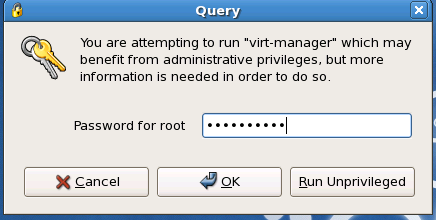
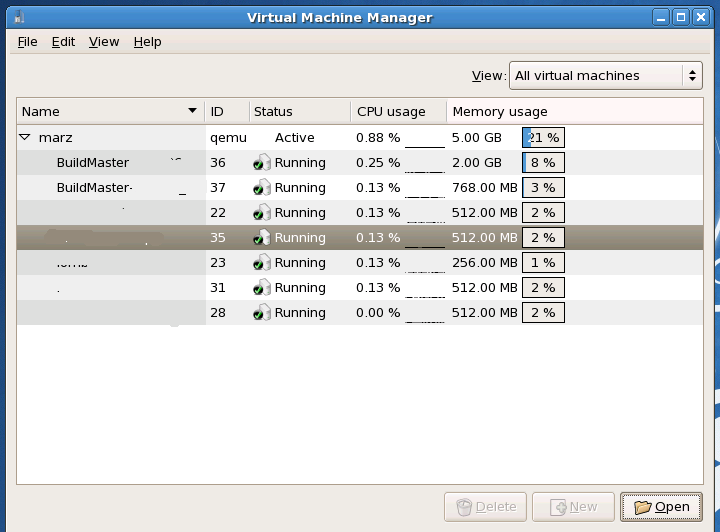
2. select which VM to change. and click “Open”. Probably better to notify user before shutting it down for re-configuration.
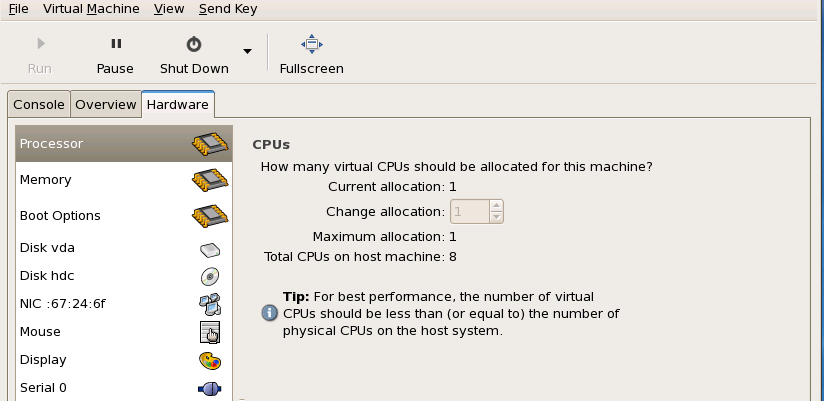
3. Get to the hardware tab.
Remove the old-network device there.
4. Then “Add Hardware”. Choose “Network”.
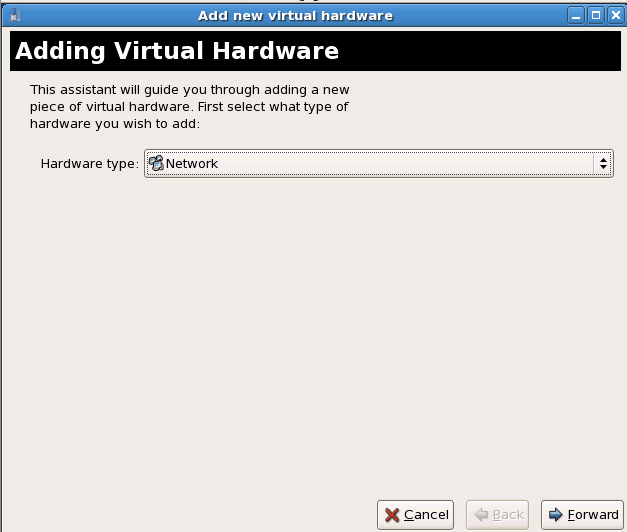
5. then the following will appear.. Choose “Physical network interface”.. eth0(bridge) should appear from the dropdown menu.
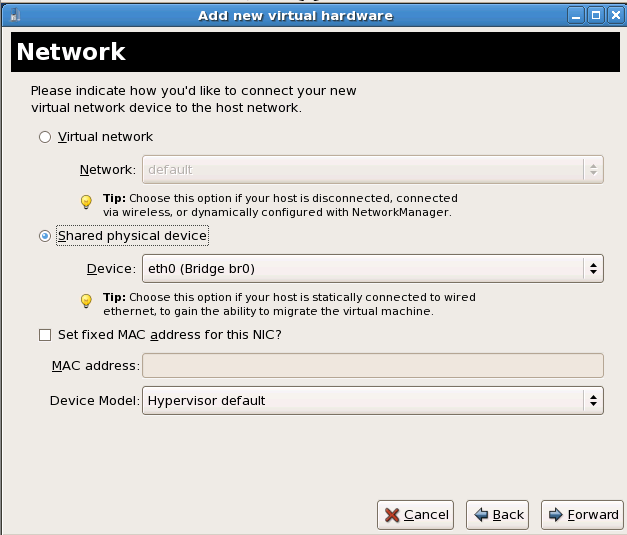
6. Done.
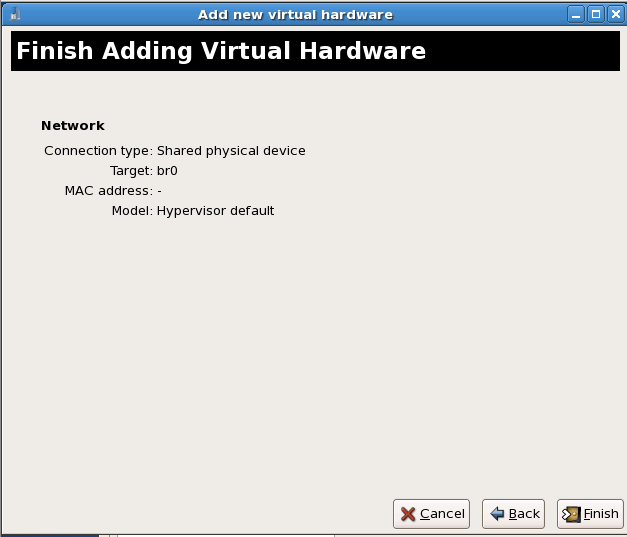
Then , maybe need to reboot the VM to get the new hardware detected.
And reconfigure the VMs network setting to suit your new “bridge” network IP setting.

Reference :

1. CentOS KVM How To
2. VLAN Bridge

..and special thanks to .sha for the head up .

p/s : this will be very useful for setting up something that requiring bridge network instead of NAT.
Like the “ADAM.NET Utility” to send “UDP / MODBUS” read/write command via network…
Related Post

8 Responses

  1. Lonnie says:

    HawkEye,
    I have followed your directions, but I get an error at the end start of the build: “ValueError: Could not find an installable distribution at ‘/data/iso/WinXP_SP2_EN.iso'”
    I have tried various ways to create a WinXP iso, your directions were the last I used. All other attempts also failed…Not sure what to try next. When I check the file, it seems to be OK…

    file /data/iso/WinXP_SP2_EN.iso
    /data/iso/WinXP_SP2_EN.iso: ISO 9660 CD-ROM filesystem data ‘VRMPOEM_EN ‘ (bootable)

    Any Ideas?

    Reply
    • HawkEYE says:

      Perhaps would verify the WinXP CD is actually not corrupted.. and if the CD-Drive is working fine..

      then .. check if the iso files actually accessible by the xen lib..

      else should check the xen lib is properly installed and also verify the current running kernel is xen enabled..

      then might be a reinstall the virtualization group would be the next thing to try ..

      btw: what host are u using ? .. my experience was based on CentOS 5.2 host.. so far it went smooth as above..

      Reply
  2. Lonnie says:

    I have built the iso several times, once from Windows CD burner app and twice with “dd” command like you showed…no reported issues…only assuming it is OK.

    How would I verify it is accessible by “xen lib”?
    How would I check to see if xen lib is properly installed?

    I am installing on IBM x345 dual Xeon 2.4GHz cpu with 4GB ram (single cores). I did the install of “Virtualization” group per some earlier notes I saw on the subject…I cannot do the “Fully Virtualized” install because the hardware I have doesn’t support it…so I did the Paravirtualized option.

    Any suggestions I could try tonight would be greatly appreciated.

    Reply
    • HawkEYE says:

      check the xen kernel by running this at terminal

      uname -a

      shall be ended with -xen at the end..

      mine is something like this..

      [root@fedora ~]# uname -a
      Linux fedora.namran.net 2.6.18-92.1.22.el5xen #1 SMP Tue Dec 16 13:08:49 EST 2008 i686 i686 i386 GNU/Linux

      and the file


      [root@fedora ~]# ll /data/iso/XP3_3282_V2_EN.iso
      -rwxr-xr-x 1 root root 670576640 Feb 21 00:07 /data/iso/XP3_3282_V2_EN.iso

      mine also a para-virtualization as unable to become utilize full-virtualization

      [root@fedora ~]# cat /proc/cpuinfo
      processor : 0
      vendor_id : GenuineIntel
      cpu family : 15
      model : 2
      model name : Intel(R) Pentium(R) 4 CPU 3.00GHz
      stepping : 9
      cpu MHz : 2992.718
      cache size : 512 KB
      fdiv_bug : no
      hlt_bug : no
      f00f_bug : no
      coma_bug : no
      fpu : yes
      fpu_exception : yes
      cpuid level : 2
      wp : yes
      flags : fpu tsc msr pae mce cx8 apic mtrr mca cmov pat pse36 clflush dts acpi mmx fxsr sse sse2 ss ht tm pbe up cid xtpr
      bogomips : 7487.18

      if all fail, shall consider to seek help from bugs.centos.org or forum http://www.centos.org/modules/newbb/viewforum.php?forum=37

      Reply
  3. Lonnie says:

    # uname -ra
    Linux homer 2.6.18-92.1.22.el5xen #1 SMP Tue Dec 16 13:08:49 EST 2008 i686 i686 i386 GNU/Linux

    # ls -l /data/iso/WinXP_SP2_EN.iso
    -rw-r–r– 1 root root 607559680 Mar 22 11:30 /data/iso/WinXP_SP2_EN.iso

    # cat /proc/cpuinfo
    processor : 0
    vendor_id : GenuineIntel
    cpu family : 15
    model : 2
    model name : Intel(R) XEON(TM) CPU 2.40GHz
    stepping : 4
    cpu MHz : 2672.992
    cache size : 512 KB
    fdiv_bug : no
    hlt_bug : no
    f00f_bug : no
    coma_bug : no
    fpu : yes
    fpu_exception : yes
    cpuid level : 2
    wp : yes
    flags : fpu tsc msr pae mce cx8 apic mtrr mca cmov pat pse36 clflush dts acpi mmx fxsr sse sse2 ss ht tm
    bogomips : 6689.88

    processor : 1
    vendor_id : GenuineIntel
    cpu family : 15
    model : 2
    model name : Intel(R) XEON(TM) CPU 2.40GHz
    stepping : 4
    cpu MHz : 2672.992
    cache size : 512 KB
    fdiv_bug : no
    hlt_bug : no
    f00f_bug : no
    coma_bug : no
    fpu : yes
    fpu_exception : yes
    cpuid level : 2
    wp : yes
    flags : fpu tsc msr pae mce cx8 apic mtrr mca cmov pat pse36 clflush dts acpi mmx fxsr sse sse2 ss ht tm up
    bogomips : 6689.88

    processor : 2
    vendor_id : GenuineIntel
    cpu family : 15
    model : 2
    model name : Intel(R) XEON(TM) CPU 2.40GHz
    stepping : 4
    cpu MHz : 2672.992
    cache size : 512 KB
    fdiv_bug : no
    hlt_bug : no
    f00f_bug : no
    coma_bug : no
    fpu : yes
    fpu_exception : yes
    cpuid level : 2
    wp : yes
    flags : fpu tsc msr pae mce cx8 apic mtrr mca cmov pat pse36 clflush dts acpi mmx fxsr sse sse2 ss ht tm up
    bogomips : 6689.88

    processor : 3
    vendor_id : GenuineIntel
    cpu family : 15
    model : 2
    model name : Intel(R) XEON(TM) CPU 2.40GHz
    stepping : 4
    cpu MHz : 2672.992
    cache size : 512 KB
    fdiv_bug : no
    hlt_bug : no
    f00f_bug : no
    coma_bug : no
    fpu : yes
    fpu_exception : yes
    cpuid level : 2
    wp : yes
    flags : fpu tsc msr pae mce cx8 apic mtrr mca cmov pat pse36 clflush dts acpi mmx fxsr sse sse2 ss ht tm up
    bogomips : 6689.88

    Reply
  4. automated forex robots says:

    How do you look for information for your blog content?

    Reply
  5. V Tweet US says:

    Thanks HawkEYE for guiding me how to install windows XP on XEN virtualization in CentOS 5. The way you have enplane it make pretty easy to do it.

    Reply
  6. http://www.lcplunderground.com says:

    Actually no matter if someone doesn’t understand after that its up to other visitors that they will help, so here it happens.

    Reply

Leave a Reply

Your email address will not be published. Required fields are marked *